There will come a time when for some unforeseeable reason you will want to run a particular report against a particular report server or job server, or both. When that time comes I hope you know how to make it happen or that you can easily find this article.
Why Would You Want to Run a Report Against a Specific Job or Report Server?
Usually for debugging purposes this topic comes up. For example you have logging configured on a certain WebI Report Server and now you want to force reports to run on it. You could also want to do this because that Report Server has a particular configuration you want to test. Perhaps you want to direct certain reports to certain report and job servers in order to do your own load balancing in scheduling some intense reports. One of these reasons might be part of the reason, but I would love to hear your comments on other good reasons.
How do you force a report to run of a Business Objects report server or job server?
This is rather easy once you know where to configure it and you have some Server Groups set up.
- Log in to the Central Management Console (CMC): this is where many things start and in this case InfoView will not help you to set any part of this up, you need CMC access.
- Create a Server Group: Go to the Server Groups section of CMC and create a new SG. After you create the SG you need to assign your targeted servers to it by clicking the “Servers” tab and clicking the “Add/Remove Servers…” button
- Locate the Desired Report:: The easiest way is to use the “Folders” section to navigate to the report in CMC, or use the “Objects” section to search for it. Once located click on the report.
- Click on the “Process” tab: yeah, do that and then you will see where the power of this often ignored tab comes from. This is where the magic happens. Remember we are still using the Central Management Console.
- Make Your Selections: You will want to almost always use the “Only use servers belonging to the selected group” option, for obvious reasons. In the corresponding drop-down box, locate the server group that you want to use. Only one server group is permitted here, but a server group can have pretty much any number of servers in it. The top setting is for scheduling only; I suggest you set this even if you don’t plan on scheduling, but your requirements may dictate otherwise. The bottom setting is for both interactive refresh and report editing (such as the JAva Report Panel for WebI Reports).
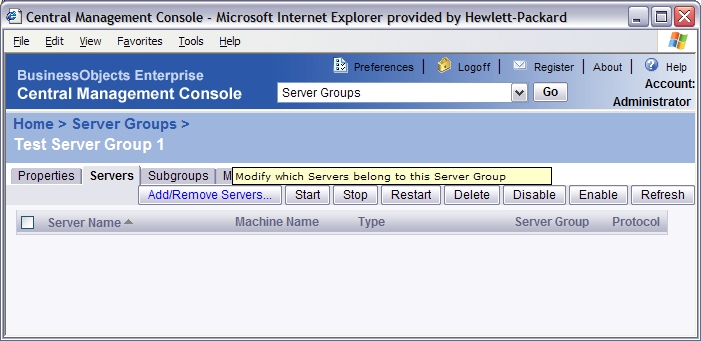
Assign BO Servers to the New Server Groups
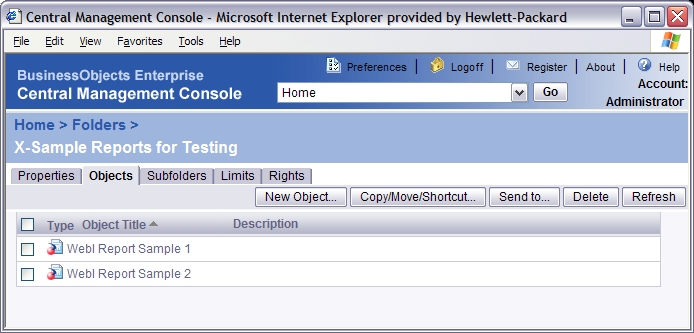
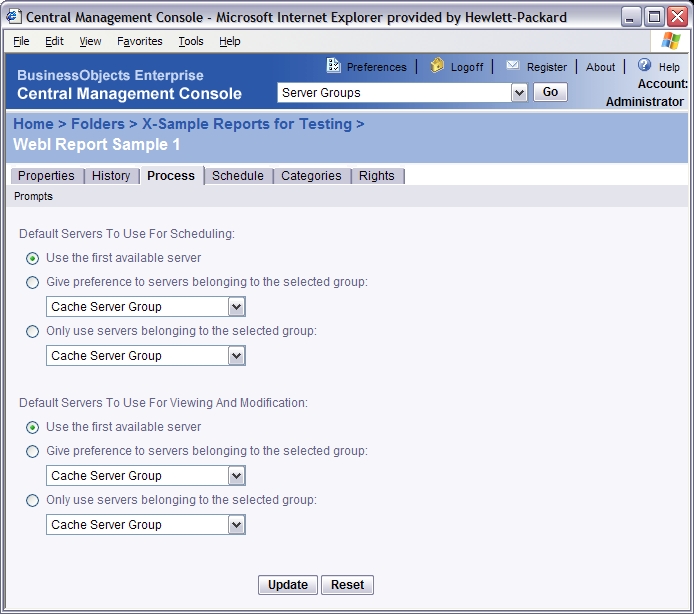
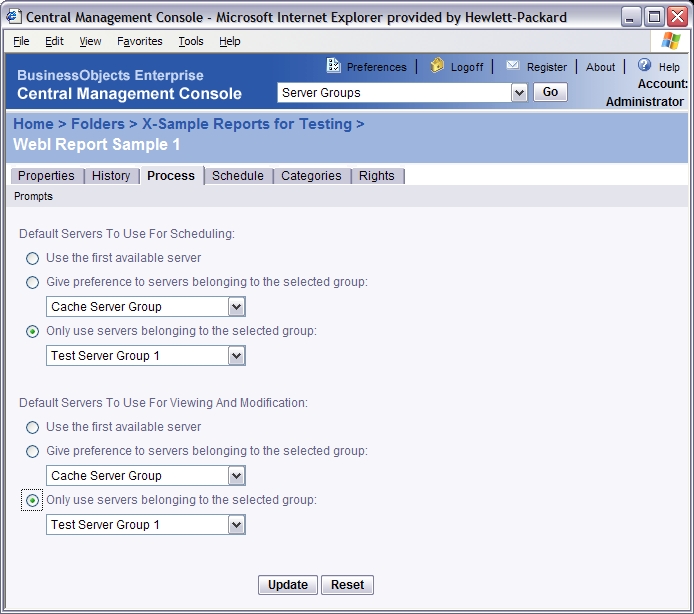
Set your server groups here
Now to Test it Out!
Ok, now you are cooking with gas! Give it a try. If you get errors, go back and check the Server Group or the assignments to the server group. If the SG is empty you WILL get errors. Sometimes errors tell you that the something is wrong with the server, such as it is not started. If a schedule stays in “Pending” status for very long this may mean that you have not added both a Job Server and a Report Server to the server group. It all depends. Experiment, observe, and learn.
A few things we’ve noticed with this. First, we use this in order to segregate our “large” reports to a single server. This lets us restrict most of our report servers to 10MB, which handles 95% of the traffic just fine. The other 5% is segregated to a specific server which is set with a 300MB limit.
1) The Report Scheduler in InfoView allows you to specify a server group to run the report against.
2) When the report is opened in DocumentViewer, it passes through the report server again. The schedule settings do not kick in at this point, only the Process tab settings. So, if your users are opening the report and attempting to use the “Save to my computer as” function, you’d better have the server group specified on the Process tab.
3) If you open an instance of the report, whether the latest instance using View Latest Instance or a previous instance from History, even the Process tab settings are ignored. It just uses a random server. If you can tell me how to fix this behavior, I’d be most grateful.
4) You cannot specify a server group for Xcelsius dashboards running through BOXI.
Hi Marshall,
Thanks for the in-depth analysis and information. Very interesting.
1) I was wondering if you found that a report assigned to a server group in the process tab only runs against random servers when scheduled if you do not assign this during the scheduling. Just trying to completely crack this nut. My thinking was the process tab settings controlled everything and schedule settings controlled just that schedule. Do you agree?
2) Good point. Also, make sure those users have access to those server groups. 😉
3) I was not aware of this. I assumed that they inherited this. I will look into this one.
4) Good to know.
Thanks,
Julian
1) Well, note that the Process tab has two sections. The top one specifies the server group when scheduled, and the bottom one for viewing and modification. So, if you do not specify a server group either when scheduling in InfoView or in the scheduling section of the Process tab, it would use a random server. Specifying a group in either section would restrict it to that group (or give priority, if that’s all you want). I would imagine that if you specified it in both locations with different server groups, it would probably take the schedule in InfoView as the priority, as it is the more specific object.
3) I’d love to know if you find anything. So far, I’ve come up blank. It’s been kind of an annoyance for one user who runs daily reports against our Large Reports group. If he’s out for a couple days, he has to go back through his instances. Then he has to take the crapshoot to see if he’s lucky enough to have it randomly run against the right server when viewing.
Hi,
Assume that we have tens of scheduled reports and I need to assign the half of them to 1 server group and the second half to another server group.
Is there an easy way to this change in bulk or do I need to change each and every report, one by one?
Thank you.
I can’t think of a bulk method for this. Sorry. Unless, perhaps you used two different user accounts to schedule the reports and then you restricted each user to only being able to use a specific server group. That might work.
Thanks a million to Julian & Marshall. I got a lot of tips after reading your posts/comments.
Great work !!
Do keep it up.
But how i can restrict each user to be able to use a specific server group?
Is there any .NET API exists for this or any CMC settings needed?
Please advice…
Is there a way to consitarint the server group to run specific reports only and dont run any other reports even if those reports are not assigned to any other server group ?
Hi Aya, I have also wanted to exclude all other reports from running on a specific server in the past. Unfortunately, I don’t think there is any way to exclude reports from using any server in the BusinessObjects Enterprise cluster.